How to Watch Movies Offline on Long Flights
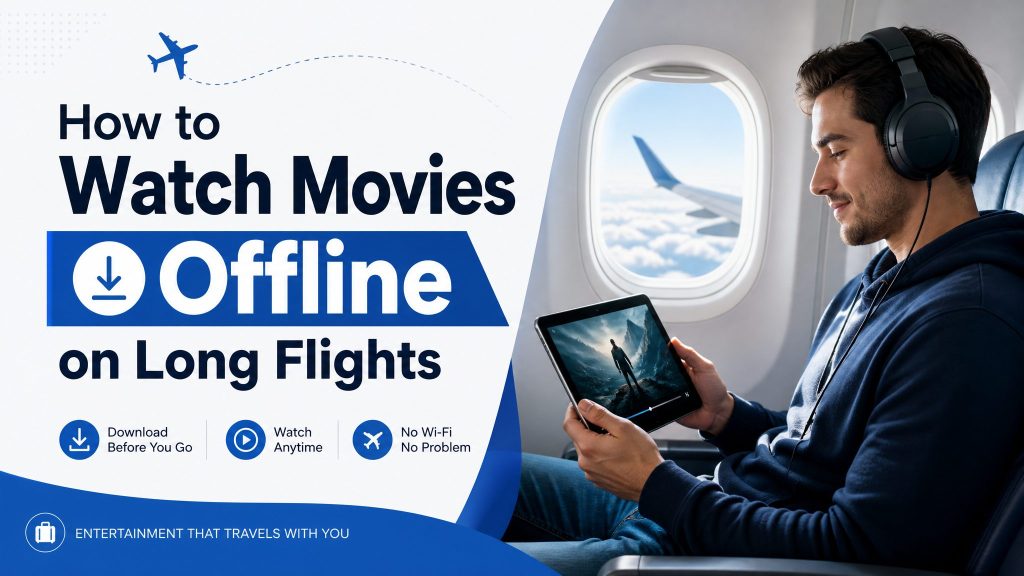
This article covers three practical methods to download movies and watch them offline on long flights, from official streaming app features to dedicated video downloaders and screen recording tools.
Long flights are the perfect time to catch up on movies, but in-flight Wi-Fi is either unavailable, unreliable, or expensive. Relying on an internet connection mid-air is never a safe bet. The smarter move is to download movies before you board and have everything ready to play offline.
Whether you use a streaming app’s built-in download feature, a dedicated video downloader, or a screen recorder, there are multiple ways to build your offline movie library before takeoff. This guide breaks down each method clearly so you can pick what works best for your device and preferred platforms.
Quick Preview: 3 Methods to Watch Movies Offline
| Method | Best For | Ease of Use | Works Without Internet |
| Official Offline Downloads | Netflix, Hulu, Disney+ users | Very Easy | Yes |
| Video Downloader (CleverGet) | Saving from any platform | Easy | Yes |
| Screen Recording (CleverGet Recorder) | DRM-protected or unsupported apps | Moderate | Yes |
3 Methods to Watch Movies Offline
1. Use Official Offline Download Features
Most major streaming platforms now offer built-in download options. Netflix, Hulu, Disney+, Amazon Prime Video, and Apple TV+ all allow subscribers to save select titles directly to their app for offline playback. The process is simple. Open the app, find a movie or show with a download icon, tap it, and the content saves to your device.
This is the most straightforward method and requires no third-party tools. However, it comes with real limitations.
- Downloads are tied to your subscription. Cancel your plan and the files become inaccessible.
- Most platforms set expiry timers. Downloaded content typically expires within 7 to 30 days, sometimes sooner after you start watching.
- Not every title is available for download. Licensing restrictions mean some movies are stream-only.
- Downloads usually only work within the official app, with no way to transfer files to another device or media player.
If you are a regular subscriber and your content is available for download, this method is fine for casual use. For more flexibility, the next two methods offer broader coverage.
2. Use a Video Downloader
A dedicated video downloader gives you more control over what you save and where you save it. CleverGet All-in-One is a desktop tool that supports downloading videos from a wide range of streaming platforms and websites. Downloaded files are saved locally on your device and do not expire.
How to Use CleverGet to Download Movies:
- Download and install CleverGet All-in-One on your Windows or Mac computer.
- Open the app and use the built-in browser to navigate to the streaming site or video page.
- Find the movie you want to watch offline and start playing it.
- CleverGet will detect the video automatically. Click the download button that appears.
- Choose your preferred resolution and format, then confirm the download.
- Once complete, the file is saved to your local storage and ready for offline playback anywhere.
Pros:
- No expiry dates on downloaded files
- Supports multiple platforms in one tool
- Saves files in standard formats compatible with most media players
- Batch download feature lets you queue multiple movies at once before a long trip
Cons:
- Requires a desktop or laptop to download
- Some platforms may restrict access depending on region or account type
3. Use Screen Recording
When a streaming service does not support downloads or a video downloader cannot access the content, screen recording is a practical backup. CleverGet Recorder is a desktop recording tool designed to capture video playback from your screen, including content that is protected by DRM.
Many streaming apps block standard screen recording tools using DRM protection, which causes the recording to show a black screen. CleverGet Recorder is built to work around this, allowing you to capture the actual video as it plays.
How to Use CleverGet Recorder:
- Install CleverGet Recorder on your Windows or Mac computer.
- Launch the app and open the movie you want to save on your streaming platform with its built-in browser.
- Start playing the movie.
- Hit “Record” in CleverGet Recorder and let the movie play through in real time.
- Stop the recording when done. The file saves locally and is ready for offline use.
Pros:
- Works on platforms that block standard screen recording
- Bypasses DRM restrictions that cause black screen issues
- No dependency on platform download availability
- Captured files are saved permanently with no expiry
Cons:
- Recording happens in real time, so a two-hour movie takes two hours to capture
- Audio and video quality depend on your screen resolution and recording settings
- Requires keeping your computer active during the entire recording session
Tips for the Best Offline Movie Experience
1. Download Multiple Movie Options
Flights get delayed, layovers happen, and a two-hour movie might not be enough for a ten-hour journey. Use CleverGet All-in-One’s batch download feature to queue several movies at once before you leave. This way you always have backup options without scrambling at the last minute.
2. Use Noise-Canceling Headphones
Cabin noise can ruin even the best movie. A decent pair of noise-canceling headphones makes a significant difference in audio clarity and helps you stay focused on the film without cranking the volume.
3. Test Playback After Downloading
Always check that your downloaded files actually play before you get on the plane. Open each file on the device you plan to use for travel, confirm the audio and video are synced correctly, and make sure the format is compatible with your media player. Discovering a corrupted file at 35,000 feet with no internet is a frustrating situation that takes two minutes to avoid.
Conclusion
Watching movies offline on a long flight is entirely doable with a little preparation. Official streaming app downloads are the easiest route if you are already subscribed and your titles support it. For broader access and permanent file saving, CleverGet All-in-One gives you a flexible download solution across multiple platforms. And when DRM protection gets in the way, CleverGet Recorder captures content directly from your screen without the black screen problem.
Pick the method that suits your setup, download your movies before you leave the house, and enjoy the flight.
FAQs
1. Is it safe to download movies to watch offline?
Yes, downloading movies through official streaming apps or reputable desktop tools is safe. Stick to trusted platforms and avoid random download sites that may bundle malware with files. Official app downloads and tools like CleverGet All-in-One are reliable and secure options.
2. Do downloaded movies expire?
Downloaded movies from official streaming apps do expire. Netflix, Hulu, and similar platforms typically set expiry windows ranging from 7 to 30 days. Some titles also expire shortly after you begin watching. Files downloaded using CleverGet All-in-One are saved locally and do not expire.
3. Are video downloaders legal to use?
The legality depends on how you use the downloaded content. Saving videos for personal, offline viewing is generally considered acceptable in many regions. Distributing, uploading, or sharing downloaded content without permission is a different matter and can violate copyright laws. Always use downloaded content responsibly and for personal use only.
4. Which streaming apps allow offline movie downloads?
Several major platforms support offline downloads including Netflix, Amazon Prime Video, Disney+, Hulu (select titles), Apple TV+, and HBO Max. Availability varies by title and subscription plan. Not all content on these platforms is cleared for download due to licensing agreements.
5. Why do some streaming apps block screen recording?
Streaming platforms use DRM, which stands for Digital Rights Management, to protect licensed content from being copied. This technology actively detects and blocks standard screen recording tools, causing the recorded output to show a blank or black screen. CleverGet Recorder is specifically designed to work around DRM restrictions, allowing you to capture video playback as it happens on your screen without the black screen issue.
Visit Theflixer for watching and downloading movies.